
This guide explains how to navigate to your global Theme Settings within the Shopify admin dashboard.
Navigation Steps
- Log in to your Shopify Admin Panel.
- In the left-hand sidebar, navigate to Online Store > Themes.
- Under the Current theme preview section, locate the active version of BoltTheme.
- Click the green Customize button on the right.
- Once the Theme Editor page has finished loading, click on the Gear icon (Theme settings) located in the left-hand control sidebar.
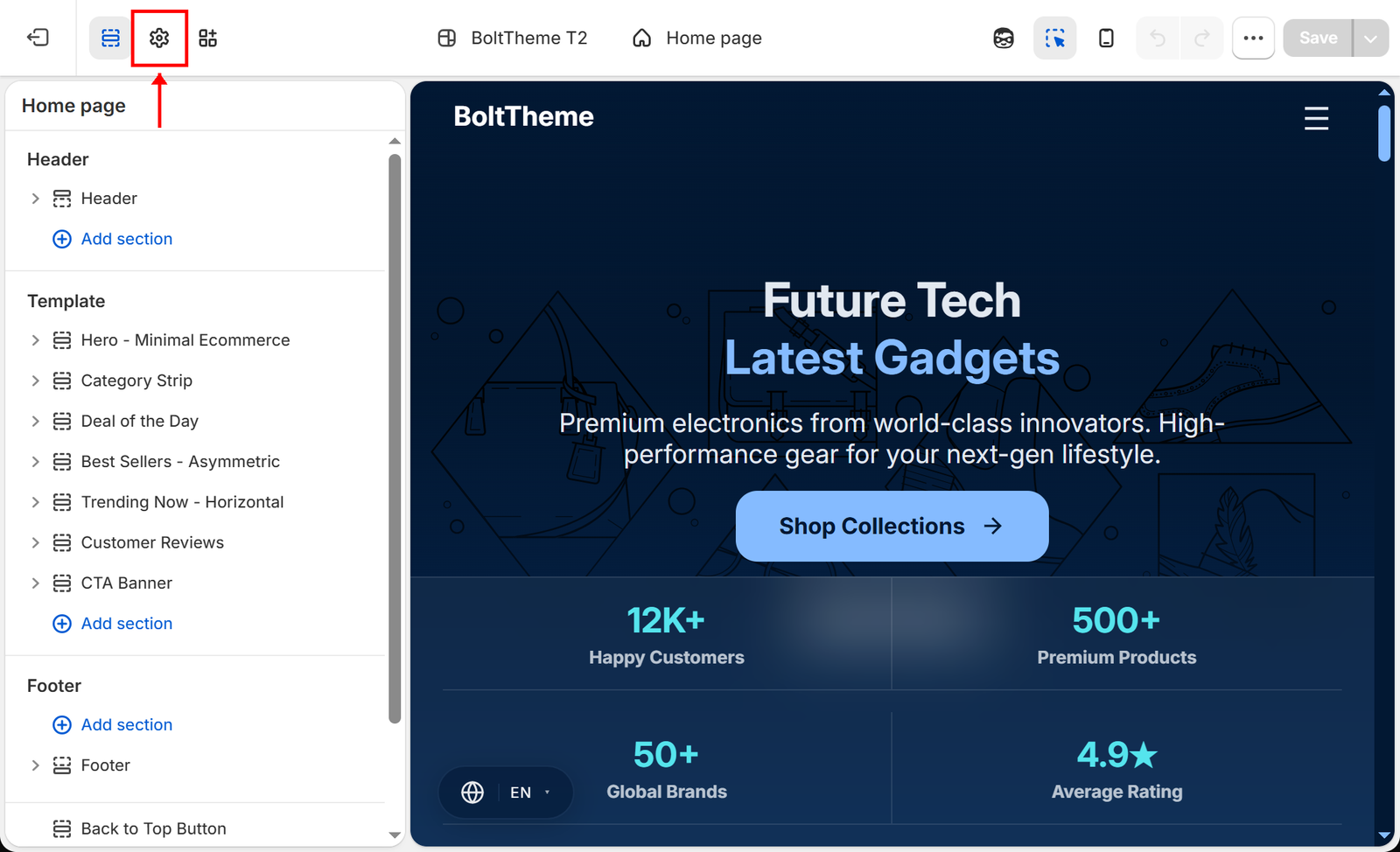
Theme Editor sidebar highlighting the gear icon representing Theme Settings
Theme Settings vs. Template Sections
It is important to understand the structural difference between these two customization panels:
- Sections Panel (Paintbrush Icon):
* Controls the dynamic content rows specific to the template page you are currently viewing (e.g. adding a custom slide to the homepage, changing a product page title block).
- Theme Settings Panel (Gear Icon):
* Configures global styling constants that apply to the entire website (e.g. setting your brand’s color palette, configuring global fonts, uploading site favicon, enabling cart drawer settings, or social media profile paths).