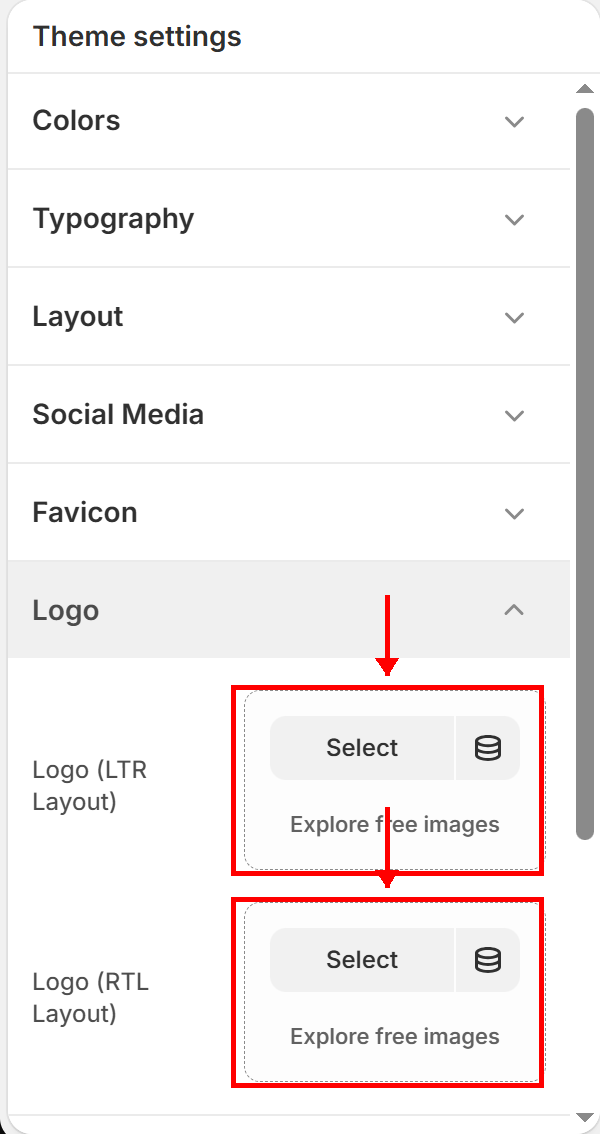
This guide explains how to upload and configure your brand logos for both Left-to-Right (LTR) and Right-to-Left (RTL) reading directions.
Configuring Your Logos
Go to Theme Settings (Gear Icon) > Logo to manage your logo settings.
1. Upload Slots
- Logo (LTR Layout):
* The main logo displayed when your store is viewed in standard LTR languages (e.g., English, French, Spanish).
- Logo (RTL Layout):
* A mirrored or translated logo version displayed when the store is viewed in RTL languages (e.g., Arabic, Hebrew, Persian, Urdu).
* This ensures that logos with text or directional icons read correctly in RTL mode.
2. Recommended Dimensions
To keep your logo crisp across standard displays:
- Image Format: PNG format with a transparent background.
- Dimensions:
400px × 120px(or200px × 60pxfor standard 72dpi screens). - Maximum File Size: Under 1MB to prevent header loading delays.
The logo width can be adjusted on a per-device basis. In the Theme Editor, select the Header section and drag the Logo Width slider to resize the logo on desktop and mobile screens.